
For e-commerce professionals, managing Amazon product data often feels like a never-ending cycle of manual copy-pasting. Whether you are an Amazon seller tracking competitor prices or a buyer hunting for the best deals, keeping your spreadsheets updated is a tedious task. However, sending amazon to google sheets automatically is entirely possible, and you don't need to be a software engineer to do it.
By leveraging simple tools and APIs, you can create a direct pipeline from Amazon's massive catalog straight into your Google Workspace. This guide will walk you through a complete no-code and low-code approach to amazon to google sheets integration, transforming your static spreadsheets into live, automated data dashboards. Whether you are monitoring a handful of competitor ASINs or tracking thousands of products across multiple categories, the same workflow scales to meet your needs.
Why Send Amazon Data to Google Sheets?
The primary advantage of moving amazon to google sheets is centralizing your data in a collaborative, familiar environment. Google Sheets is not just a grid of cells; it is a powerful database that connects easily with visualization tools like Google Looker Studio and automation platforms like Zapier or Make.
For Amazon sellers, an automated amazon to google sheets workflow means you can monitor the Buy Box, track inventory levels, and analyze competitor pricing strategies in real-time without logging into Seller Central or relying on expensive third-party software. You can set up custom alerts using conditional formatting that turns red when a competitor drops their price, and share these insights instantly with your team.
For buyers and researchers, an amazon to google sheets integration allows you to build custom price trackers, compare specifications across dozens of products simultaneously, and calculate historical price averages to ensure you are buying at the optimal time. Price-conscious shoppers who monitor seasonal sales events like Prime Day or Black Friday can use this setup to know exactly when a product hits its lowest recorded price.
For data analysts and agencies, having a live feed of Amazon data in Google Sheets means you can build client-facing dashboards that update automatically, removing the need for manual data exports and the human errors that come with them.
What Amazon Data Can Be Exported?
When you set up an amazon to google sheets pipeline, the scope of data you can extract is extensive. Depending on the API or tool you use, you can automatically pull a wide range of structured data points from Amazon's product catalog.
The most commonly requested data types include Basic Product Details such as ASIN, Title, Brand, Category, and high-resolution Image URLs. Beyond these basics, you can also retrieve Pricing Information including the current Buy Box price, list price, discount percentages, and shipping costs. For competitive analysis, Performance Metrics like Best Sellers Rank (BSR), total review count, and average star ratings are invaluable for understanding a product's market position.
More advanced use cases benefit from Seller Data, which shows the number of active sellers on a listing, their fulfillment type (FBA vs. FBM), and real-time stock availability. For Amazon FBA sellers specifically, Logistics Data including package dimensions and weight is critical for accurate FBA fee calculations before committing to a product.
By pulling this specific data via an amazon to google sheets integration, you eliminate human error and ensure your analysis is always based on the freshest possible market conditions rather than data that was manually copied hours or days ago.
Setting Up Google Sheets Integration
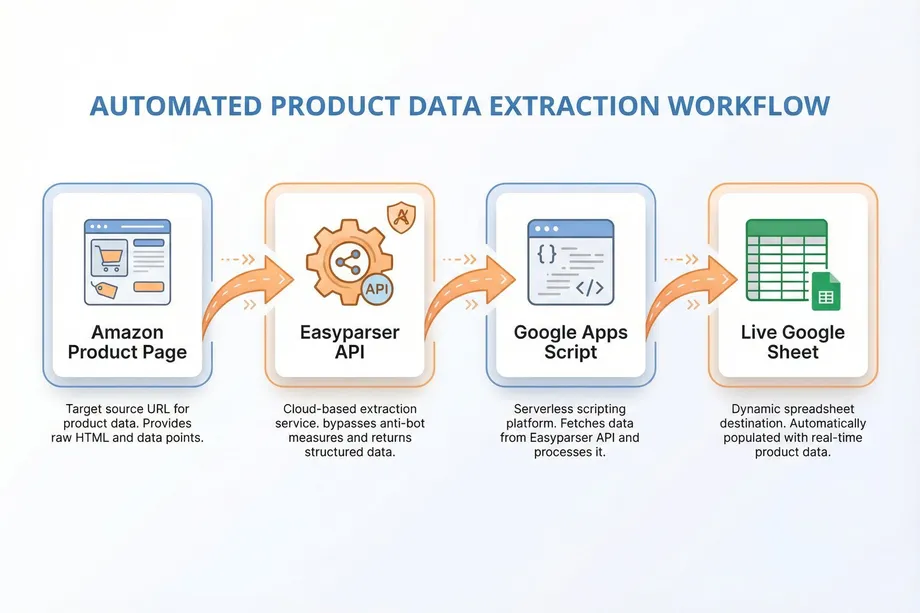
To begin our amazon to google sheets setup, we will use Google Apps Script. This is a cloud-based JavaScript platform integrated directly into Google Workspace. It allows us to make API calls to fetch data and write it directly into our spreadsheet cells, all without installing any external software.
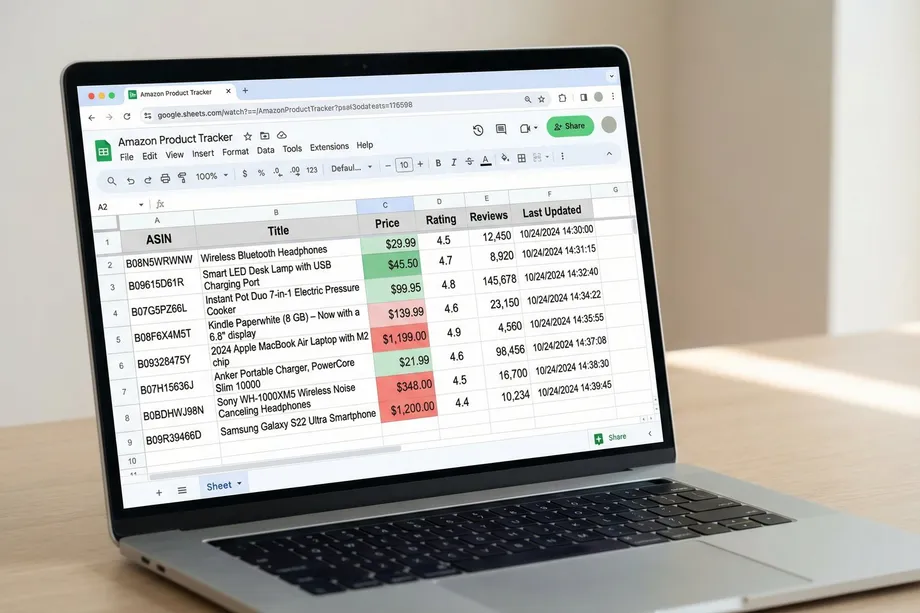
Follow these steps to prepare your Google Sheet. First, open a new Google Sheet and name it "Amazon Product Tracker". Create column headers in the first row: ASIN, Title, Price, Rating, Reviews, and Last Updated. Enter a few Amazon ASINs in the ASIN column starting from row 2. An ASIN is the unique 10-character identifier Amazon assigns to every product, visible in the product URL after /dp/. In the top menu, click on Extensions then Apps Script. This will open the script editor where we will place our automation code.
Before writing the script, you will need an API key from Easyparser. The free plan provides 100 credits per month with no credit card required, which is more than enough to test and validate your setup. Each API call consumes exactly one credit, so 100 credits means you can fetch data for 100 individual products.
Using API with Google Sheets
To fetch the actual data for our amazon to google sheets project, we need a reliable data provider. Scraping Amazon directly is notoriously difficult due to CAPTCHAs and IP blocks. This is where Easyparser Amazon data API comes in. Easyparser is a dedicated Amazon data API that handles all the complex extraction logic and returns clean, structured JSON data. It supports all major Amazon marketplaces and automatically manages anti-bot protection, so your Google Sheet always receives the data reliably.
In your Google Apps Script editor, delete any existing code and paste the following script. This script reads the ASINs from your sheet, calls the Easyparser API for each one, and populates the adjacent columns with live data.
function updateAmazonData() {
var sheet = SpreadsheetApp.getActiveSpreadsheet().getActiveSheet();
var lastRow = sheet.getLastRow();
var apiKey = "YOUR_EASYPARSER_API_KEY"; // Get from app.easyparser.com
for (var i = 2; i <= lastRow; i++) {
var asin = sheet.getRange(i, 1).getValue();
if (!asin) continue;
var url = "https://realtime.easyparser.com/v1/request?api_key="
+ apiKey + "&platform=AMZ&operation=DETAIL&domain=.com&asin=" + asin;
var options = { "method": "get", "muteHttpExceptions": true };
try {
var response = UrlFetchApp.fetch(url, options);
var data = JSON.parse(response.getContentText());
if (data.result && data.result.detail) {
var product = data.result.detail;
sheet.getRange(i, 2).setValue(product.title);
sheet.getRange(i, 3).setValue(product.buybox_winner ? product.buybox_winner.price.value : "N/A");
sheet.getRange(i, 4).setValue(product.rating || "N/A");
sheet.getRange(i, 5).setValue(product.ratings_total || 0);
sheet.getRange(i, 6).setValue(new Date().toLocaleString());
}
} catch (e) {
Logger.log("Error for ASIN " + asin + ": " + e.toString());
}
Utilities.sleep(500); // Pause 0.5s between requests
}
}
Once you replace YOUR_EASYPARSER_API_KEY with your actual key from app.easyparser.com, click the "Run" button in the editor. Google will ask for permission to access your spreadsheet and make external HTTP requests. After granting these permissions, watch as your spreadsheet populates with live Amazon data.
Automating Amazon Data Sync
The true power of an amazon to google sheets setup is automation. You don't want to click "Run" manually every day. Google Apps Script includes a feature called "Triggers" that allows you to run your script on a schedule, completely hands-free.
To automate your amazon to google sheets data sync, open the Apps Script editor and click on the clock icon (Triggers) in the left sidebar. Click the "Add Trigger" button in the bottom right corner. Choose updateAmazonData as the function to run, set the event source to "Time-driven", and select your desired frequency. For most price tracking use cases, running the script once per day between midnight and 1 AM is sufficient and conserves your API credits efficiently.
For more demanding scenarios, such as monitoring flash deals or time-sensitive pricing changes, you can set the trigger to run every hour. With Easyparser's transparent 1-credit-per-result pricing model, you always know exactly how many credits your automation will consume per day, making it easy to budget and scale.
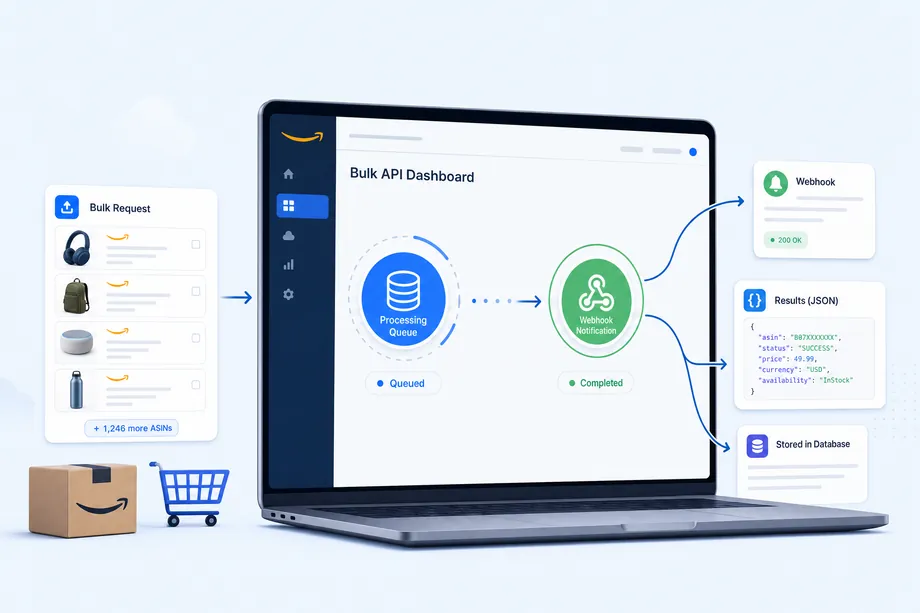
If you need to track a large number of ASINs simultaneously, you can also take advantage of Easyparser's Easyparser Amazon data API, which accepts up to 5,000 ASINs in a single asynchronous request and delivers results via webhook. This is significantly more efficient than making individual Real-Time API calls in a loop, especially for daily batch updates of large product catalogs.
Use Cases
Implementing an amazon to google sheets solution opens up numerous practical possibilities for both buyers and sellers across different industries and business models.
For Amazon Sellers - Competitive Intelligence: You can create an automated competitive intelligence dashboard. By tracking the ASINs of your top 10 competitors, you can instantly see when they run out of stock or lower their prices. Combined with Easyparser's OFFER operation, you can track exactly who is winning the Buy Box at any given moment, allowing you to adjust your own pricing strategy dynamically. Sellers using repricing tools can use this data to set smarter floor and ceiling prices.
For Amazon Sellers - FBA Fee Calculator: Using Easyparser's Package Dimension operation, you can pull the exact dimensions and weight of any product directly into your Google Sheet. With a few simple formulas, you can build a live FBA fee calculator that automatically updates whenever Amazon changes its fee structure, ensuring your profitability calculations are always accurate before you place a purchase order.
For Affiliate Marketers: Maintaining up-to-date pricing on your blog or website is critical for conversions. An amazon to google sheets workflow allows you to track all your recommended products in one place. You can easily spot when a product is discontinued or its price drops significantly, allowing you to highlight special deals to your audience at exactly the right moment.
For Procurement Teams: If your business buys supplies on Amazon, tracking historical pricing for your most frequently purchased items can save thousands of dollars annually. By logging the price daily into Google Sheets, you can create charts to visualize pricing trends and identify the best seasonal windows to place bulk orders, turning a reactive purchasing process into a data-driven strategy.
For Market Researchers: Analysts who need to monitor category trends, track new product launches, or benchmark pricing across a niche can use an amazon to google sheets pipeline to build a continuously updated market intelligence database. By combining SEARCH operation results with DETAIL lookups, you can maintain a comprehensive view of any Amazon category without any manual data collection.
Conclusion
Setting up an amazon to google sheets integration is one of the highest-return investments you can make in your e-commerce workflow. The combination of Google Apps Script's free, built-in scripting environment and Easyparser's reliable, structured Amazon data API creates a pipeline that is both powerful and accessible to anyone, regardless of their technical background.
The workflow described in this guide - from setting up your spreadsheet to scheduling automated daily syncs - can be implemented in under an hour. Once running, it delivers continuous value by keeping your data fresh, eliminating manual work, and enabling the kind of data-driven decisions that separate successful Amazon businesses from those relying on guesswork. Start with the free trial, build your first tracker, and see how much time you reclaim in the first week alone.
Start building with the Easyparser API today
Start Your Free Trial100 free credits, no credit card required.